FeaturesLists by kind

Lists that know what they hold

A shopping list is not a list of expenses. Each kind of list in Moonto has the fields its rows need, so a date, an amount, a phone number or a barcode always has its place.

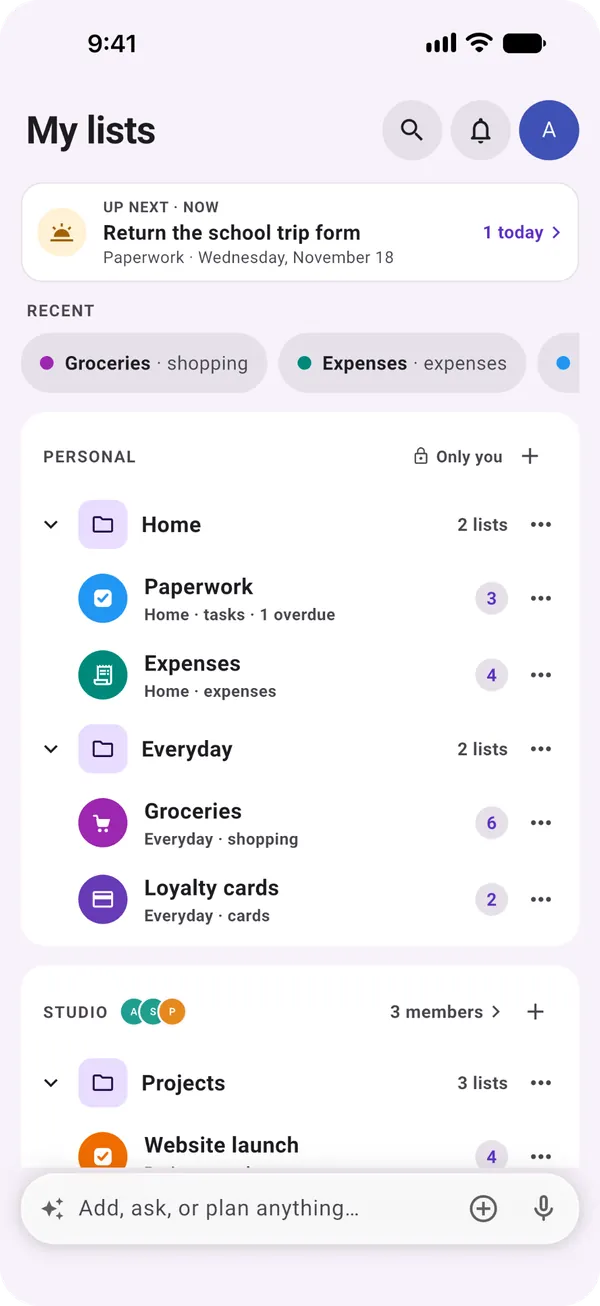
The My lists page: Up next at the top, recent lists, then lists sorted into groups in your personal space, and a shared space below.

Six kinds

Pick the kind when you create a list.

Every kind, every field and as many lists as you like are free on every plan. The few places where Moonto's AI does the work for you, marked Premium below, come with Premium, after a free AI trial: 7 days, or less if you use it a lot.

Shopping

Free

Start typing and pick from Moonto's catalogue: each item comes with its picture and lands in its aisle, so the list reads in the order you walk through the shop. Type « 2 eggs » and the quantity comes with it. Add something that is already on the list and its quantity goes up instead of a second row appearing; something you bought earlier is simply put back.

Each item has a quantity and unit, a price, a note and a category. Checked items stay at the bottom for the rest of the day, then move to Purchased items, where « + » puts one back. Shopping mode shows the list aisle by aisle with a basket, and keeps the screen on. Set an item to repeat every few weeks and it comes back by itself; over time Moonto also notices what you buy regularly and suggests it under « You usually buy ».

You add
« 2 eggs », with eggs already on the list
The list
Still one Eggs row, under Dairy, now with a quantity of 3
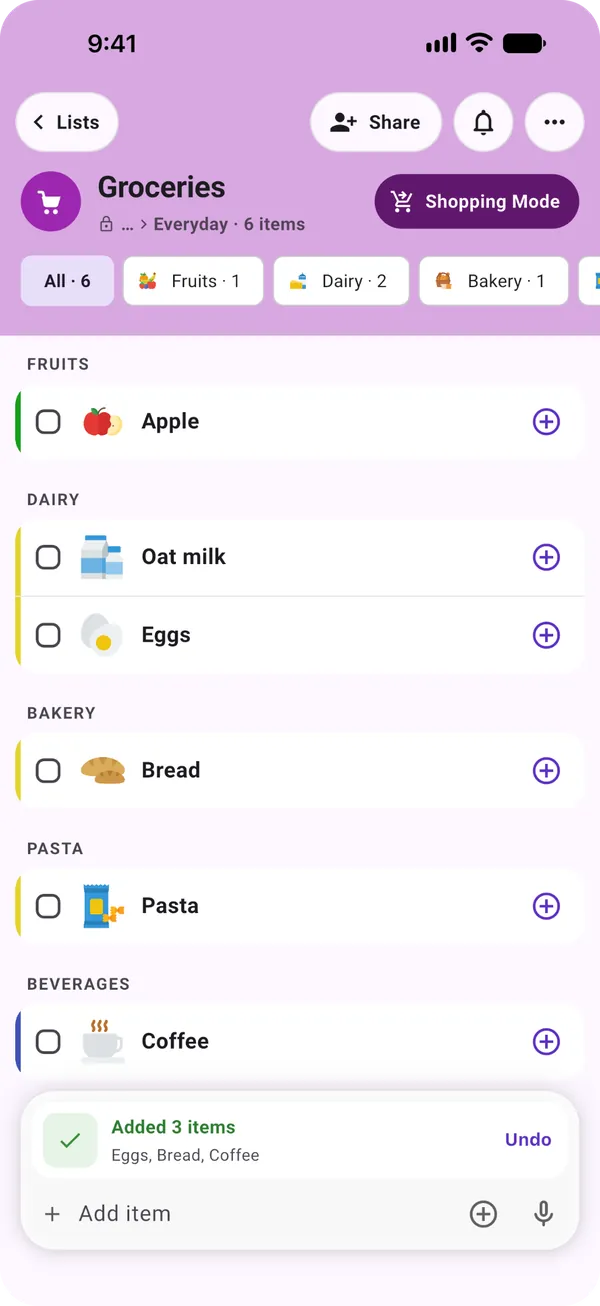
A shopping list sorted by aisle, each item with its picture, and a Shopping Mode button at the top

Tasks

FreePremium: automatic categories

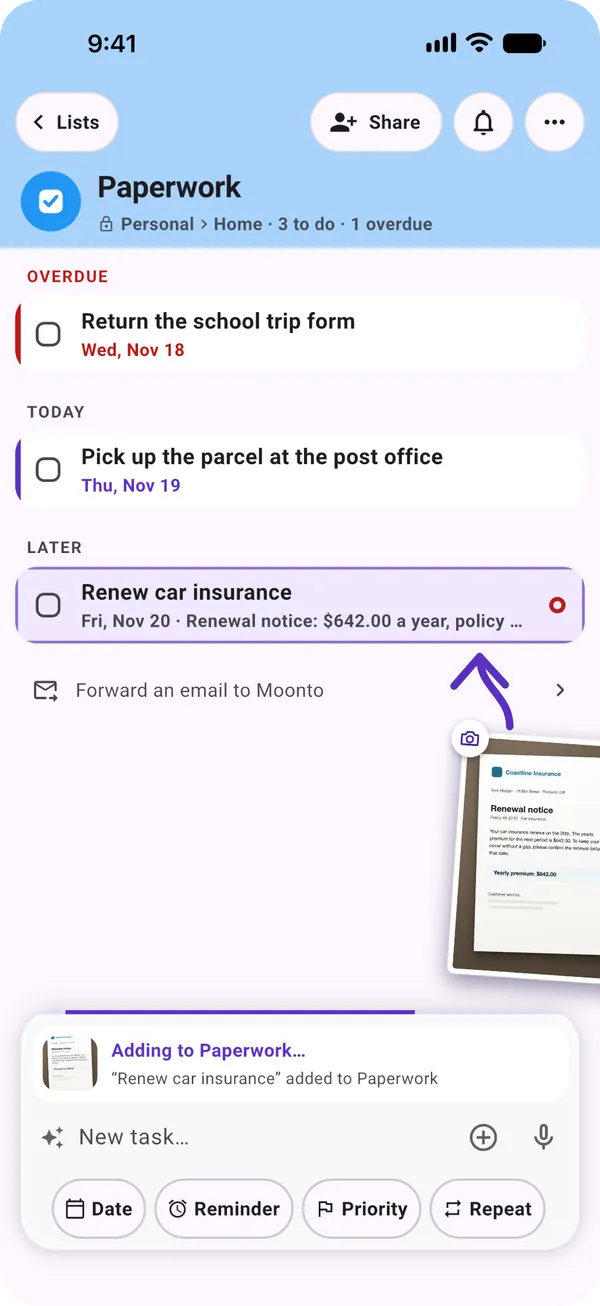
A task has a date, with a time if you want one, a reminder, a priority from low to urgent, and a repeat: every day, every 2 weeks, every month, every year. The list puts what is overdue at the top, then today, then later. Type « tomorrow » and the date is set; « !! » marks it high priority.

Open a task for its notes, its category, the photos or files attached and, on a shared list, who it is assigned to. Check off a repeating task and the next one comes back by itself for its next date. With Premium or the trial, Moonto also gives each new task a category for you.

On Thursday
« Return the school trip form » was due Wednesday
The list
It sits under Overdue, above today's tasks, until you check it off
A tasks list in three sections, Overdue, Today and Later, with the Date, Reminder, Priority and Repeat chips under the field

Notes

FreePremium: titles and dictation

A note is a title and as much text as you want, with photos and files attached. As you write, Moonto spots a date or someone from your People lists: the note takes that date, so it shows on the calendar, and is linked to that person. If you leave halfway, your draft is waiting for you.

With Premium or the trial, Moonto proposes a title from what you wrote, and turns a voice recording into text. Without it, the first line is the title.

You write
« Lunch with Sam on Tuesday: she prefers the blue design »
Moonto
Spots Tuesday and Sam; you remove either with one tap

People

Free

Who someone is and how to reach them: name, company, phone, email, a photo, and « To remember » for their role, how you met or what they like.

On your phone, add someone from your contacts or scan their business card. From a person's card, call or write in one tap. An expense or a note can point to a person, so you know who it concerned.

You scan
A business card, with the phone's camera
The list
Name, company, phone and email filled in, ready to check and save

Expenses

Free

Each expense has an amount, a date, a client, a receipt photo and whether it is paid. Expenses are records, not to-dos: there is nothing to check off.

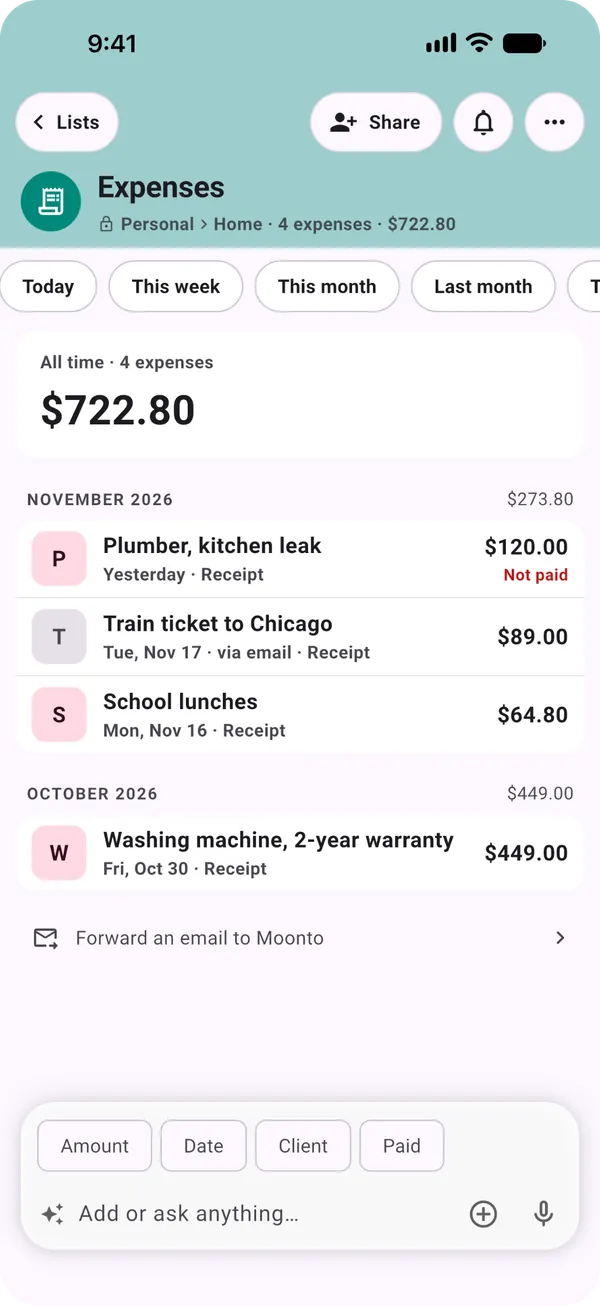
Pick a period, today, this week, this month, last month, this year or all, and its total sits at the top, with the expenses grouped by day or month below. Amounts in other currencies are shown beside it, never converted. Unpaid ones say « Not paid ».

You pick
This month
The list
The month's expenses and their total, with Not paid under the plumber's bill
An expenses list with period chips, the total for all time, and each expense with its date, receipt and amount

Loyalty cards

FreePremium: reading the card's name

Keep loyalty and membership cards in a list of their own. Take a photo of a card: the phone reads its barcode itself, offline, and keeps the photo, front and back if you like.

At the till, open the card: its barcode fills the screen, at full brightness. With Premium or the trial, Moonto also reads the card's name and colour from the photo; otherwise you type the name.

At the till
You open your supermarket card
Your phone
Shows its barcode, large and bright, ready to scan

Everything stays yours to change

Free

Every row opens to all its fields, and everything can be edited, including what Moonto filled in for you. A list has a name, a colour and a description; you can sort it, put it in your own order, export it or mute its notifications.

On My lists, put lists into groups and subgroups and drag them into the order you like; the ones you used last wait under Recent. Lists live in spaces: Personal is just for you, and a shared space is seen by everyone in it.

  • GroupsGroups and subgroups, in your order
  • RecentThe lists you used last, at the top
  • ExportA list as text, CSV or JSON
  • SpacesPersonal for you, shared ones for others

How to start

Three steps.

  1. Create a list

    On My lists, tap « + » and pick the kind: shopping, tasks, notes, people, expenses or cards. Give it a name.

  2. Add the first rows

    Type straight into the list. A shopping list suggests from the catalogue; a tasks list offers Date, Reminder, Priority and Repeat.

  3. Arrange it your way

    Put it in a group, give it a colour, or share it with the people it concerns.

Send it to Moonto.

On iPhone, Android and the web, in 8 languages. Free to start.

Everyone you share with uses it free.