

FeaturesSpaces and sharing

Spaces and sharing

Share one list, or a whole space of lists, with the people it concerns. What one person adds, the others see within seconds. Everyone you share with uses it free.

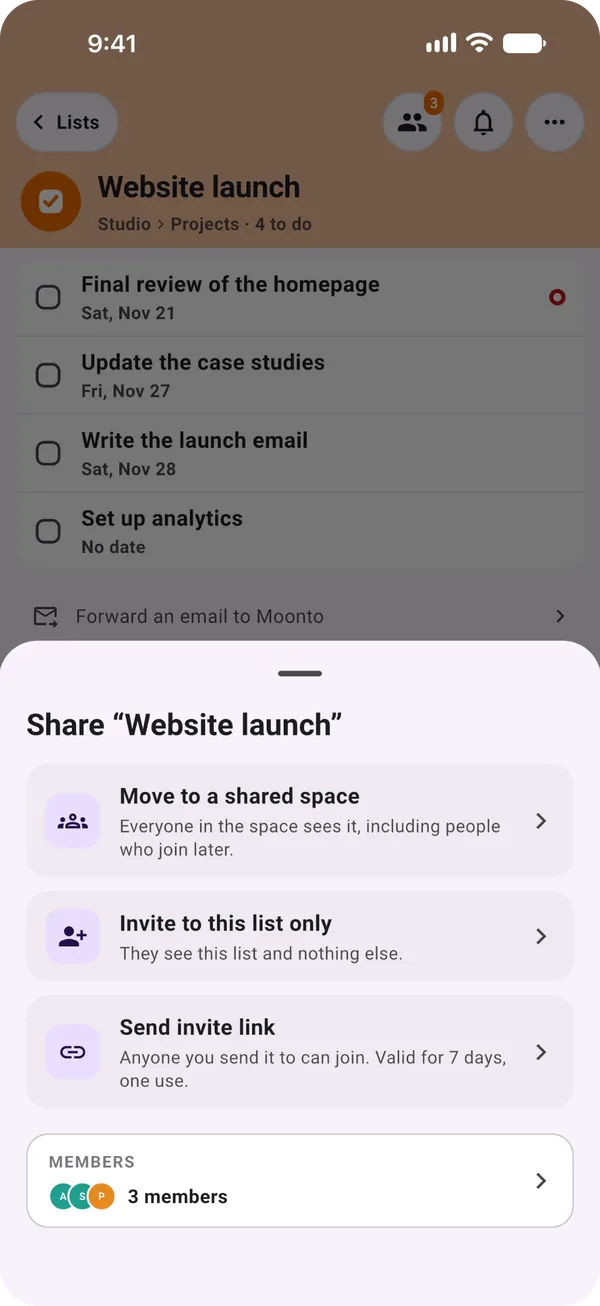
A tasks list with its Share sheet open: Move to a shared space, Invite to this list only, Send invite link, and the list's members.

How it works

Share what concerns them, keep the rest.

Sharing is free on every plan, with as many people as you like, and the people you invite don't need to pay either. Only Moonto's AI comes with Premium.

Personal and shared spaces

Free

Your lists start in Personal: only you see them. A shared space is a set of lists you keep with other people. Its members see every list in it, and a list created there is shared automatically, including with people who join later.

You
Create the space « Lisbon trip » and invite two friends
Result
The packing list, the bookings and the trip's expenses are in one place, for all three of you
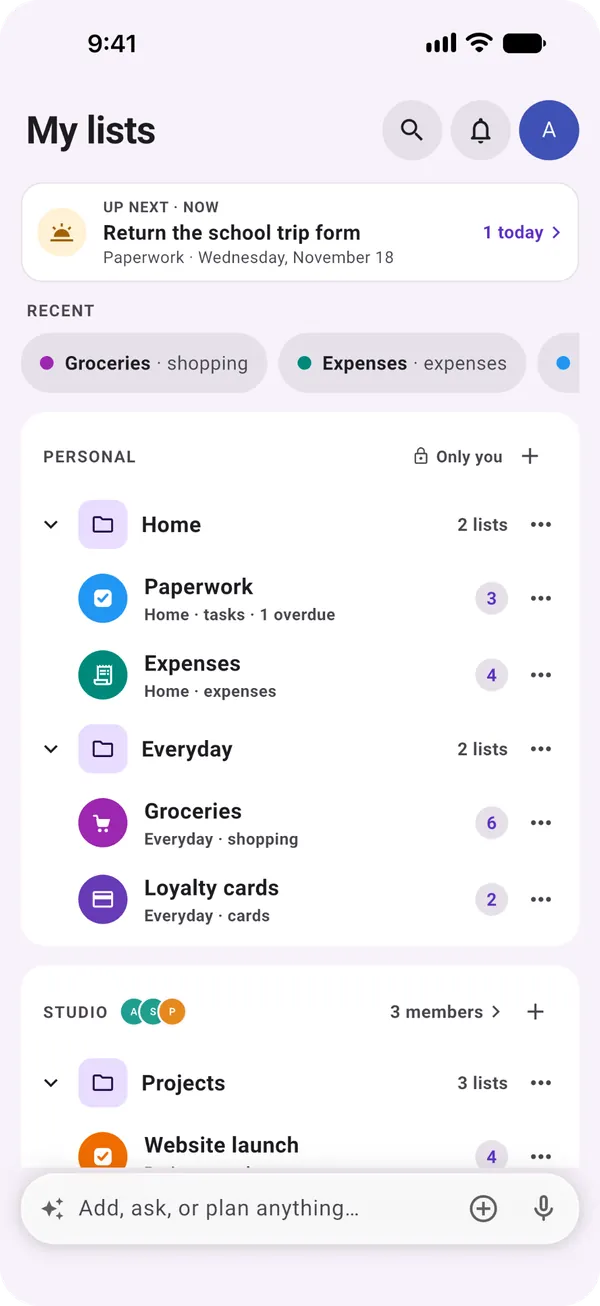
My lists in Moonto: Personal lists and a shared space, each with its lists

Just one list

Free

Not everything belongs in a space. Open a list, tap Share and choose « Invite to this list only »: the person sees that list and nothing else. You can also move a list you own into a shared space from the same sheet.

You
Share « Dad's paperwork » with your brother
Result
He sees that list only: the tax return, the insurance letter, the doctor's appointment. Your other lists stay yours.

Invite by name, email or link

Free

Type a contact's name, or an email address: they get an email to join. Or send an invite link through any app you like. A link works once and for 7 days, so send one per person; you can revoke it while it waits.

To invite someone to a whole space, open the space and tap Invite under Members.

You
Send an invite link to a client in a message
Result
They open it, sign in and join that list. The link can't be used again.

Nothing is shared until they accept

Free

The person you invite opens the link or the email, signs in to Moonto (or creates an account) and taps Continue to join. Cancel declines. They can also answer later, in Settings › Contacts. Until they accept, they see nothing of your list.

They
Open your invitation, sign in with their email and a 6-digit code, tap Continue
Result
The list appears in their Moonto, with everything already on it

What everyone can do

Free

Every member can add, edit, check off and delete items, and rename the list. Some things stay with the list's owner.

  • Every memberAdds, edits, checks off and deletes items, and renames the list
  • TasksA task can be assigned to anyone who sees the list
  • RemindersOn a shared list, a reminder can notify all members
  • Only the ownerDeletes the list, moves it to another space, removes a member

What stays yours

Free

Sharing a list shares its items, not the way you arrange your app. Your groups, the order of your lists, the lists you mute and About me, the facts Moonto knows about you, stay yours alone.

You
Mute the notifications of a busy shared list
Result
You stop hearing about it. The others still get theirs.

Live, and without a connection

Free

Shared lists update live: once both phones are online, what one person adds shows up for the others within seconds, and Moonto can tell you when someone adds or checks off an item. On your phone you can open your lists, add and check off items with no signal; the changes go out as soon as you are back online.

You
Check off « milk » in the shop's basement, with no signal
Result
It reaches the others when you are back above ground

Leaving, and removing someone

Free

To leave a list someone else owns, choose Leave in its ⋯ menu in My lists. To leave a space, open it and choose Leave space; for the lists you created there, you decide whether they stay shared or come back to Personal.

The owner of a list removes a member from the members row of its Share sheet. Deleting a list you own deletes it for everyone; deleting a space keeps its lists, shared with the members they have.

You
Leave the « Lisbon trip » space after the holiday
Result
Your lists from the trip come back to Personal, if you like, and the others keep theirs

Situations

Who you might share with.

  • A trip with friends

    One shared space for the trip: what to pack, the bookings with their dates, and the expenses, so nobody has to ask who paid for what.

  • A parent's paperwork

    One list shared with a brother or a sister: the letters to answer, the appointments, the bills. Each of you sees what's done and what's left.

  • A client follow-up

    One list shared with the client only: what you're waiting for from them and what they're waiting for from you, with dates. They don't see anything else you keep in Moonto.

How to start

Three steps.

  1. Open a list

    Or create a new shared space, if several lists belong together.

  2. Tap Share

    Invite someone by name or email, or send an invite link through any app.

  3. They accept

    They sign in, tap Continue, and the list is shared. They use it free.

Send it to Moonto.

On iPhone, Android and the web, in 8 languages. Free to start.

Everyone you share with uses it free.