

FeaturesConnections

Connections

Your lists, reachable from the AI assistant you already use, such as Claude or ChatGPT, and from your own tools. You decide what each connection may do, see everything it changed, and switch it off whenever you like.

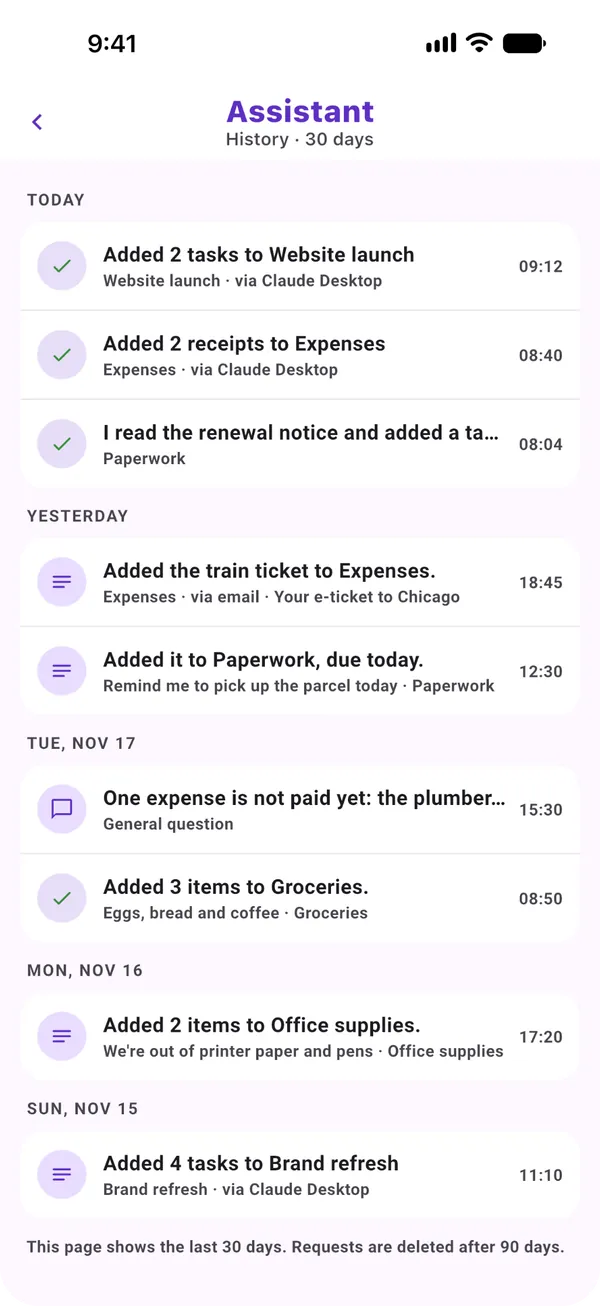
The assistant's history in Moonto: tasks and receipts added via Claude Desktop, a train ticket via email, each with its list.

Your AI assistant

Ask your assistant about your lists.

Reading your lists from a connection is free on every plan. Changes are free for your first 200, to try; after that, writing comes with Premium.

One address and a sign-in

Free

Moonto speaks MCP, the Model Context Protocol: an open standard that lets an AI assistant use another app. Paste Moonto's address where your assistant adds a connector, sign in with the account you use in the app, and allow.

Nothing else to copy, no key to handle. From then on, your assistant can look in your lists when you ask it something.

Step by step, for each assistant

You
Paste https://api.moonto.app/mcp as a connector, sign in to Moonto, allow
Result
Your assistant can now read your lists

Read only, or read and change

Free: readingPremium: changes after 200

Reading is always on. When you connect, choose whether the assistant may also add, change and delete items; leave that unticked and it can only read. Each connection has its own setting.

  • ReadingYour lists and their items, search across them, your About me facts, what's due to buy again
  • With changes allowedAdd, change and delete items, and create a list

Every change, in your history, with Undo

Free

What a connection changes shows in the assistant's history in Moonto, under the connection's name, like the requests you make in the app. Open one and tap Undo.

You
« Add the two follow-ups from this meeting to Website launch »
Result
Added 2 tasks to Website launch · via Claude Desktop, in your history, with Undo

Switch it off at any time

Free

Every connection is listed in Settings › Integrations › Access tokens, with whether it may change your lists and when it was last used. Revoke it and it can no longer reach your lists, immediately.

You
Revoke your assistant's connection in Access tokens
Result
It can no longer read or change your lists. Your lists stay as they are.

Your own tools

For scripts, apps and automations.

If you write a little code, or use a tool that can call a web address, Moonto has a plain API and webhooks. The developers page is the full reference.

Access tokens

Free

For a tool that doesn't sign in by itself, such as Claude Desktop, Cursor or a script, create a token in Settings › Integrations › Access tokens. Give it a name and choose whether it may change your lists. The token is shown once; the app also copies a ready configuration for Claude Desktop and Cursor.

You
Create a token named « Office screen », read only
Result
A script on the screen shows today's shopping list. It can't change anything.

The REST API

FreePremium

Your lists, their rows and search, over plain HTTPS and JSON, with the same token. Your tools can add, change and delete rows the way the app does. Asking Moonto's assistant in plain words through the API needs Premium or the trial.

You
A form on your website sends each new enquiry to Moonto
Result
A task Reply to the enquiry in your follow-up list

Webhooks

Free

Moonto calls your address whenever a row of your lists is added, changed or deleted, with a signature so your server knows it came from Moonto. Add one in Settings › Integrations › Webhooks.

You
Check off « Send the invoice » in Moonto
Result
Your accounting tool hears about it a moment later

Siri, Shortcuts and forwarded emails

Two more ways in need no code at all: Siri and the Shortcuts app on iPhone, and a private address you forward emails to. They are explained with the other ways of sending things in.

Sending things in

What it costs

FreePremium

Reading through a connection, the API or webhooks is free on every plan. Without Premium, an account gets 200 changes in total to try: each row added, changed or deleted, and each list created, counts as one. After that, writing comes with Premium, and reading stays free.

So that a script can't run away, each token is limited to 60 calls a minute, and each account to 2,000 calls and 1,000 written rows a day.

  • Free, every planReading, search, webhooks, and 200 changes to try
  • PremiumChanges without the 200 limit, and asking the assistant through the API

The developers page: addresses, configuration, limits

How to start

Three steps.

  1. Copy the address

    https://api.moonto.app/mcp, from this page or the developers page.

  2. Add it to your assistant

    As a custom connector in Claude, or as an app in ChatGPT's developer mode.

  3. Sign in and allow

    With the account you use in the app. Untick changes if it should only read.

Send it to Moonto.

On iPhone, Android and the web, in 8 languages. Free to start.

Everyone you share with uses it free.