
FeaturesSending things in

Sending things in

Type it, snap it, say it or forward it. Whatever reaches Moonto lands in the right list, with its date, its amount and the people involved.

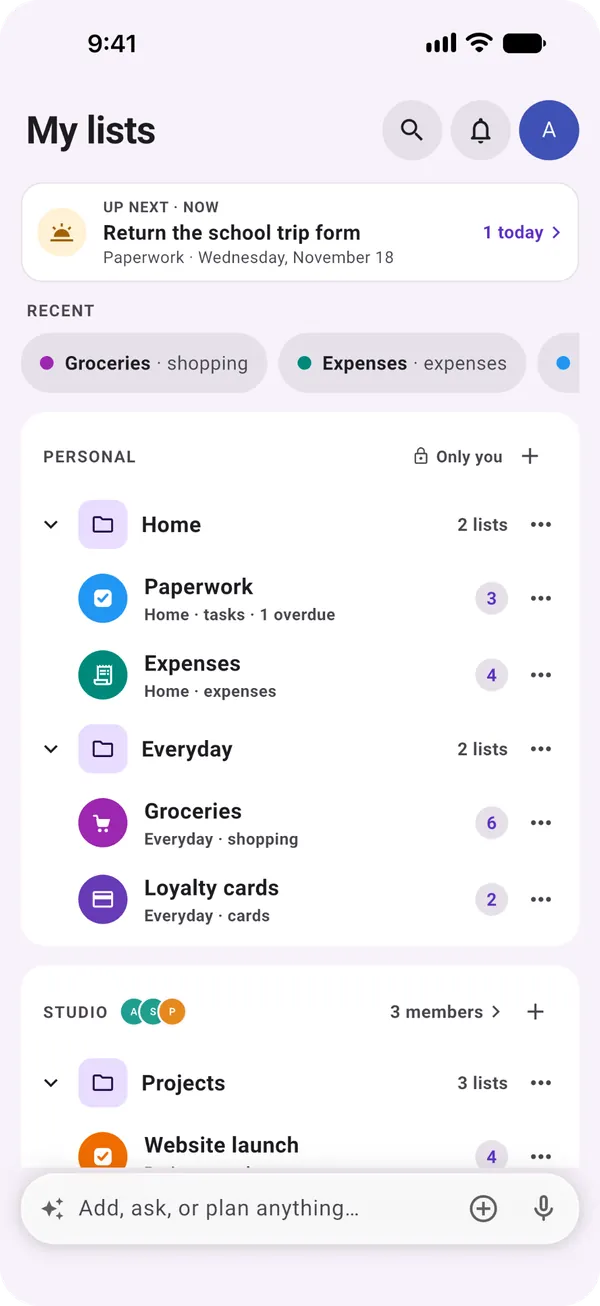
My lists in Moonto, with the bar at the bottom: « Add, ask, or plan anything… », a plus button and a microphone.

Six ways in

Use whichever is closest to hand.

Typing straight into a list is free on every plan. Moonto's AI, the part that reads a photo, a voice note or an email and files it for you, comes with Premium, after a free trial: 7 days, or less if you use it a lot.

Typing

Free: into a listPremium: asking Moonto

Inside a list, what you type goes straight in as a row. In the bar at the bottom of the screen, write in your own words and Moonto works out the list, the date and the details. When it needs one more thing, it asks.

You type
« dentist Tuesday at 3 »
Moonto files
Dentist in your tasks, Tuesday 15:00
Typing a new task into a tasks list, with Date, Reminder, Priority and Repeat chips

Photo

Premium

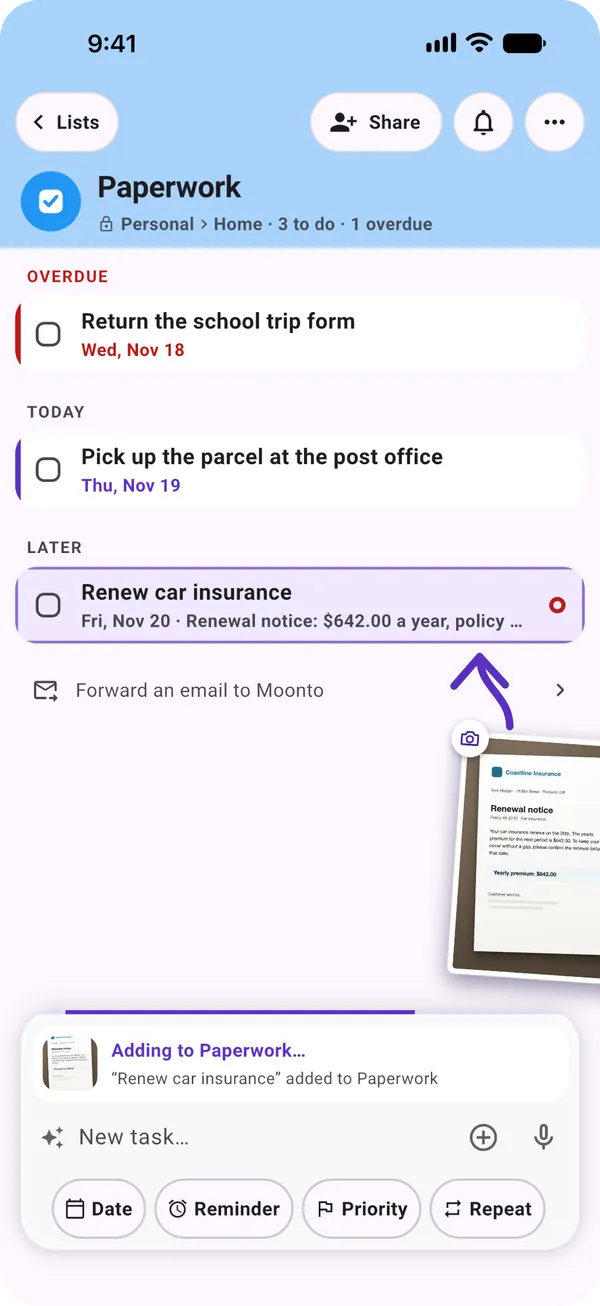
Snap a letter, a bill or a receipt. Moonto reads it and files what matters: a task with its date, an expense with its amount.

You send
A photo of the car insurance renewal notice
Moonto files
Renew car insurance, Fri, Nov 20, with the yearly amount from the letter
A photographed renewal notice being filed in the Paperwork list

Voice

Premium

Tap the microphone and say it, as you would to a person. Several things at once are fine: each one goes where it belongs.

You say
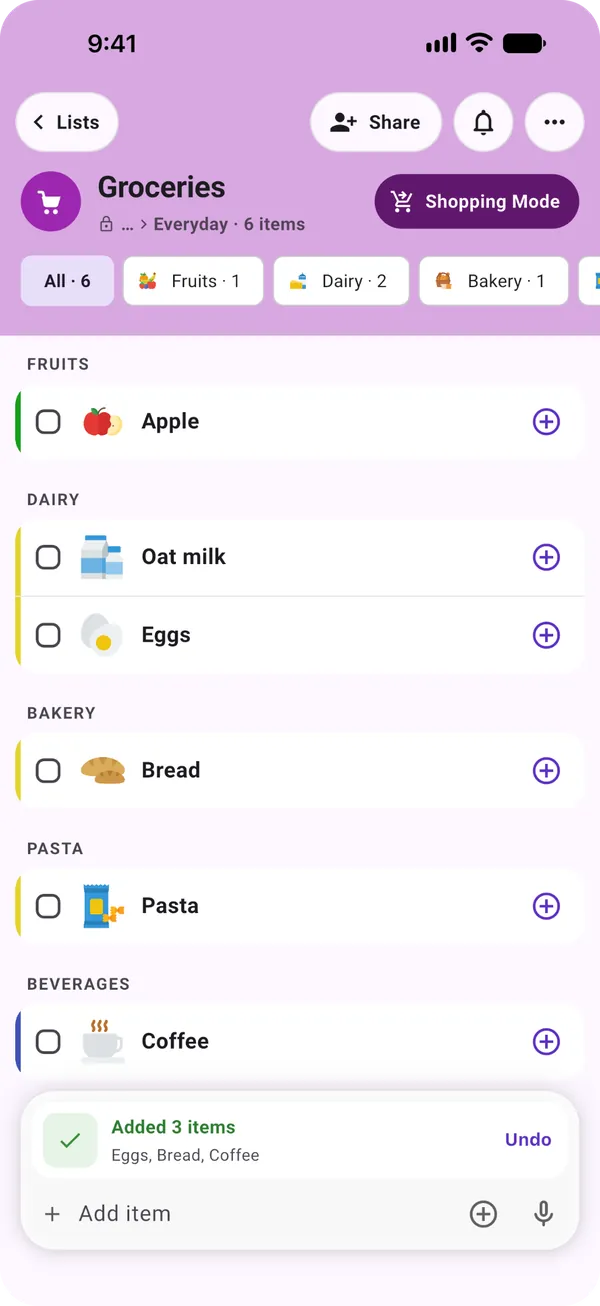
« eggs, bread and coffee »
Moonto files
Three items on Groceries, each in its aisle, with Undo
A Groceries list showing « Added 3 items: Eggs, Bread, Coffee » with Undo

Forwarded emails

Premium

Settings gives you a private Moonto address. Forward a bill, a booking or an invoice to it: it becomes rows in the right list, attachments included. When nothing else fits, you get a « Reply to… » task, so nothing is dropped.

You forward
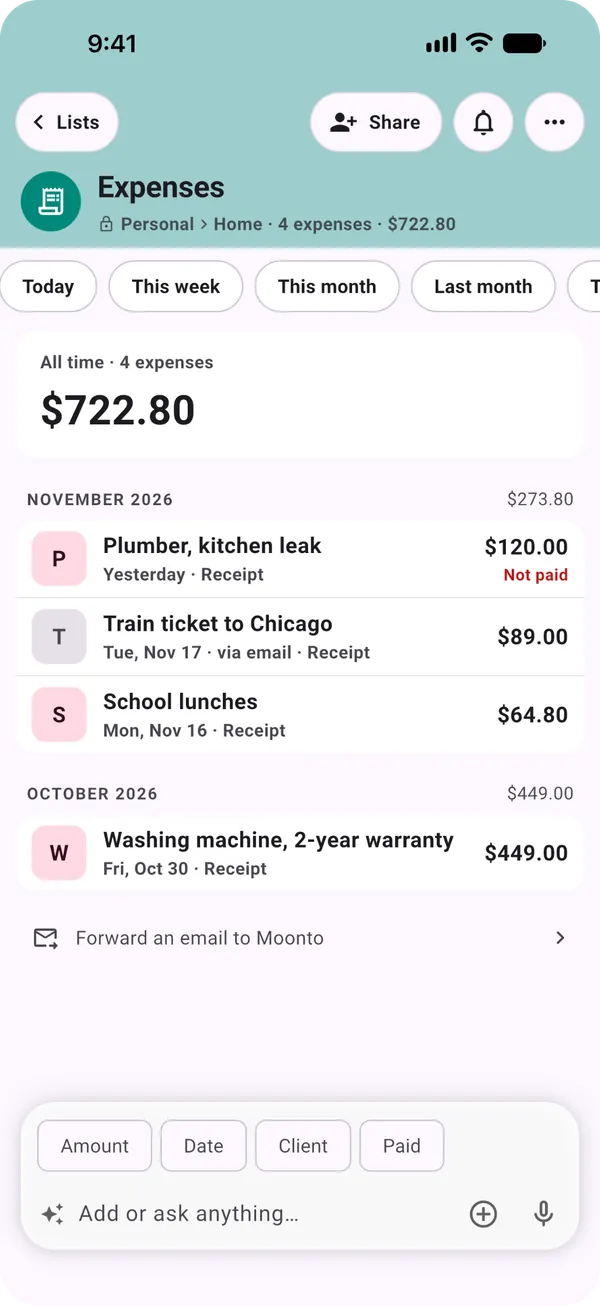
Your e-ticket for the train to Chicago
Moonto files
Train ticket to Chicago, $89.00 in Expenses, marked « via email »
An Expenses list with « Train ticket to Chicago · via email »

Siri & Shortcuts

Free: Add a rowPremium: Add to Moonto

On iPhone, say « Add to Moonto » to Siri and Moonto files it in the right list. In the Shortcuts app, « Add a row » puts your words in the list you pick, exactly as typed, and « Open a list » takes you there.

On Android, long-press the Moonto icon and choose Add to Moonto: you land on the bar, ready to type.

You say
« Hey Siri, add to Moonto: pick up the parcel at the post office tomorrow »
Moonto files
Pick up the parcel at the post office, tomorrow, in your tasks

Widgets

Free

Put Moonto on your home screen, on iPhone and Android. « Send to Moonto » opens straight onto typing, the microphone or the camera; what you send that way goes to Moonto's AI, so it needs Premium or the trial.

  • Send to MoontoType, speak or take a photo
  • Up nextWhat's next, today and what's coming
  • A listOne of your lists on the home screen
  • Moonto CardsYour loyalty cards, ready at the till

How to start

Three steps.

  1. Get Moonto

    From the App Store, Google Play or your browser. Sign in with Google, your email (a 6-digit code, no password) or, on iPhone, Apple.

  2. Send your first thing

    Type it, snap a letter or say it. Your free AI trial starts with your first request to Moonto: 7 days, or less if you use it a lot.

  3. Open more ways in

    Turn on « Forward emails to Moonto » in Settings › Integrations, add a widget, or ask Siri.

Send it to Moonto.

On iPhone, Android and the web, in 8 languages. Free to start.

Everyone you share with uses it free.